Posts

Web API Using Power Apps Custom Connector

Image
  In this tutorial, we will discuss how to create ASP .Net Web application and use this web API in power app using custom connector. 1.      Create a new ASP .Net Web application project using Visual Studio 2.      Build, Deploy & Secure a Web API in Azure 3.      Connect API To Power Apps Using Custom Connector   1.      Create a new ASP .Net Web application project using Visual Studio Open the visual studio 2019 and select ASP.NET web application (.Net Framework) and give the project name and click on Create. On the next screen as shown below screen short select Web API and click on create. Add a new empty controller to the project. Right click on the “Controllers” folder & select Add -> Controller -> Web API 2 Controller -Empty. Name this "ProductsController" as shown in below screen shorts. The Project structure look like below format. Next step right click on the “Mod...
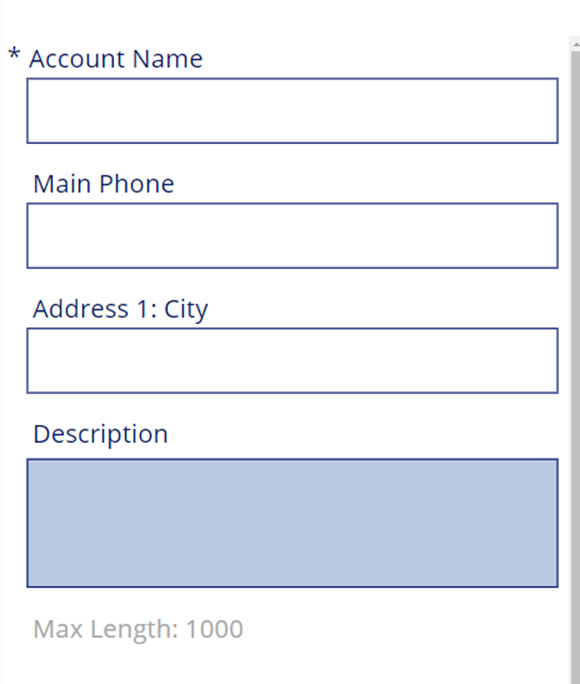
Get Dynamic 365 field metadata in a canvas app using DataSourceinfo function.

Image
  Gallery and Forms are used to work with Common Data Service Entities data from Dynamics 365 like Accounts, Contacts and Opportunities. We can retrieve Some of the common field level metadata info like MinValue, MaxValue and MaxLength of a field. We can leverage DataSourceInfo function to enrich your Common Data Service form in a Canvas Power App by showing some metadata about fields. Something like below screen shot. DataSourceInfo function: DataSourceInfo is a function that provides some information about the DataSource itself or the columns present in the Data Source. In this article, I’m trying to show some metadata fields values from Dynamics 365 using CDS Data Source. I have create a sample canvas app and added few labels to show these values. MaxLength MaxLength is used to show the maximum allowed capacity of a field. Most useful to show the maximum length of fields such as a Multi-line Text Field in Dynamics 365 CRM. I have placed maxLen label below the Descripti...

Access Restriction in a Canvas App Using a SharePoint Group and Power Automate

Image
In this Power Apps Tutorial, We will discuss how to restrict users from accessing certain features in a canvas app, while other users can still see and use features. How to use SharePoint action in Power Automate to authenticate a user. Why to Restrict Access? In any App, there’s always more than one type of user. For example, there will be customers, staff, administrators, in business management application. An administrator will have access to everything meanwhile, staff will have limited access however a customer can only access his data. Therefore, we need to make sure that we restrict users from interacting with specific data or features. For example, using Power Automate, we can hide anything in our Canvas App from users so that they do not interact with it. With the help of SharePoint group we will come to know how has access and who does not. 1.      Create a SharePoint group. Navigate to SharePoint site click on setting and site permission. Next ...