Posts

Showing posts with the label Power Apps

Upload a Word document in a Canvas app using Power Automate and save it to a SharePoint location.

Image
·     Navigate to : https://make.powerapps.com/ ·     Create a Canvas app ·     Open the created app ·     Click -->Insert -->Select Media->Add picture. ·     Add below formula OnSelect property. Set(fileType, Lower(Last(Split( AddMediaButton1 .FileName, ".")).Value)); Set(FileName, AddMediaButton1 .FileName);     Button Event OnSelect : CreateDocumentInSharepoint.Run( FileName, fileType,                 {                     contentBytes: AddMediaButton1 .Media,                     name: AddMediaButton1 .FileName                 }             )   Click on 3 dots Select PowerAutomate Create a power Automate flow with CreateDocumentI...

Receive Incoming Message in Twilio using Power Automate

Image
  In this blog we will learn how to read when an incoming message received in Twilio using Power Automate. ·        Power Automate Flow creation. ·        Configuration power automate flow URL in Twilio.   Power Automate Flow creation. Open https://make.powerapps.com/   and create a new automated flow in Power Automate using the "When an HTTP request is received" trigger. To do this, search for "HTTP" and select the HTTP request trigger, as shown below. Give the required flow name and click on Create. Next add Compose compound and add below formal  to read input from above step. decodeUriComponent(string(triggerBody())) Next to read received message, from number and to number we need each initial variables in flow. From Number add below formal in value:  first(split(split(outputs('Compose'), 'From=')[1], '&')) To Number add below formal in value : first(split(split(ou...

Create email templates in dynamic 365 and send email using Power Automate

Image
We can utilize email templates with Power Automate to send emails. Follow these steps to use email templates with Power Automate. ·         Create Email Template in dynamic 365. ·         Configure Power Automate to Email Template. Create Email Template in dynamic 365: Navigate to Power Platform admin center, navigate to the Environments tab, and select your environment you wish to create email template refer below screen short. Click on setting and look for Templets and click on Email Template. Click on new on tool bar. The Email Template Type dialog box will open. Select the desired entity and then click OK. On the template form, provide a name for your email template and, if desired, add a description. Note that the email template name and description will not be visible to the recipient. Enter the text you want to send in the message. Use the formatting toolbar to edit and style your...

Duplicate Detection in Dynamics 365 using power apps.

Image
  User Case: When setting up a contact in Dynamics 365, verify if a contact with the same email address already exists. If it does, prompt an error message indicating a duplicate email address. Step 1 :  Navigate to make.powerapps.com, screen 1 à Create a Blank Canvas App à Connect with Dynamics 365 Data Source à Connect Contact Entity as Dataset (You can connect other entity also as per your requirement) Step 2:   Screen 2 - Insert a new Blank Screen to show Duplicate Detection Dialog Step 3:   Add few Text Input and Button Controls in Screen 1 or design as per your need. Step 4:  Add below formula on Button Control (onSelect property) to find Duplicate Record. If ( IsBlank ( LookUp ( Contacts , emailaddress1 = Emailaddress_Text . Text )), UpdateContext ({ result: "Duplicates Record not found" }), Navigate ( DuplicateDetectionDailogbox , ScreenTransition . CoverRight ) ) ; You can use following formula also on Button Control (onSelect property...

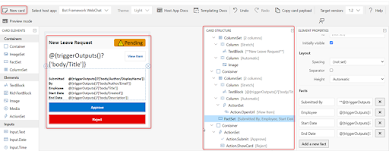
How to implement approval in Teams using Adaptive Cards

Image
  Adaptive Cards are self-contained user interface components that transcend platform boundaries. Crafted in JSON format, these snippets of UI can be seamlessly exchanged between applications. Upon reaching a particular application, the JSON content is dynamically rendered into native UI elements, seamlessly blending with the app's aesthetic. This approach facilitates the creation and seamless integration of lightweight UI elements across diverse platforms and frameworks. User Story: We're preparing to implement a leave approval workflow in Teams utilizing adaptive cards. Employees will submit their leave requests, and line managers will receive notifications within Teams. Step 1 – Design the Adaptive Card Prior to establishing the flow, let's initiate the card design process using the designer tool to ensure readiness. Visit https://adaptivecards.io/designer/   to access the designer interface and adjust the 'host app' setting to Microsoft Teams – Light /...