Posts

Get Dynamic 365 field metadata in a canvas app using DataSourceinfo function.
Image
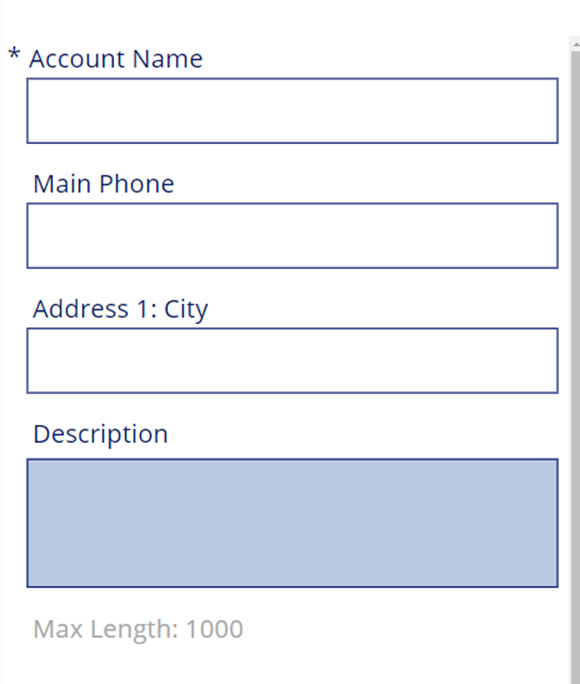
  Gallery and Forms are used to work with Common Data Service Entities data from Dynamics 365 like Accounts, Contacts and Opportunities. We can retrieve Some of the common field level metadata info like MinValue, MaxValue and MaxLength of a field. We can leverage DataSourceInfo function to enrich your Common Data Service form in a Canvas Power App by showing some metadata about fields. Something like below screen shot. DataSourceInfo function: DataSourceInfo is a function that provides some information about the DataSource itself or the columns present in the Data Source. In this article, I’m trying to show some metadata fields values from Dynamics 365 using CDS Data Source. I have create a sample canvas app and added few labels to show these values. MaxLength MaxLength is used to show the maximum allowed capacity of a field. Most useful to show the maximum length of fields such as a Multi-line Text Field in Dynamics 365 CRM. I have placed maxLen label below the Descripti...

Access Restriction in a Canvas App Using a SharePoint Group and Power Automate

Image
In this Power Apps Tutorial, We will discuss how to restrict users from accessing certain features in a canvas app, while other users can still see and use features. How to use SharePoint action in Power Automate to authenticate a user. Why to Restrict Access? In any App, there’s always more than one type of user. For example, there will be customers, staff, administrators, in business management application. An administrator will have access to everything meanwhile, staff will have limited access however a customer can only access his data. Therefore, we need to make sure that we restrict users from interacting with specific data or features. For example, using Power Automate, we can hide anything in our Canvas App from users so that they do not interact with it. With the help of SharePoint group we will come to know how has access and who does not. 1.      Create a SharePoint group. Navigate to SharePoint site click on setting and site permission. Next ...

Enable Editable Grids in Dynamic 365

Image
Editable Grid is a feature which is introduced in Dynamics 365, it’s an inbuilt add on by Microsoft in Dynamics 365. The Inline editing feature provided by Editable Grid is very useful in case of bulk editing within a short time period. By default, when you create any custom entity or any OOB entities, editable grid is not configured. By default, read-only grid is shown to the users. To configure the editable grid follow the steps. In Setting click on Customize the system. In the  Entities  list, open the appropriate entity, click on forms and select main form as refer below screen. Insert sub grid on the form and add section on sub grid. Configure the sub grid to get required data as show in below screen. Click on Add Control, the following window will be populated, here click on Editable Grid Then the properties will be shown below the Editable Grid like Modes, Types Click on Add, then the properties will be added to the window as below Editable Grid properties c...

Search Application using power automate with canvas app.

Image
  In this Power Apps Tutorial, We will discuss how to get data from Dynamic 365 using MS Flow. it’s syntax, how to use the Power automate and return data to canvas app. We will also see how to search button with work do display items from the Data vase Account Entity using the Power automate   to canvas app. Step  1 : We will Create MS Flow to get data from dynamic 365 account entity and send response to canvas app. Navigate to https://make.powerapps.com/ Once above link opened please click on flows from left navigate and click on new flow. Give Flow name based on requirement and select PowerApps. Next steps to create two variables Name, City because our application will search based these two inputs. Please select  list rows as next step in power app where we need to select our entity (Ex: Account entity) and click on show advanced options to write Fetch XML what we have download from advance find from CRM. We can get the counts of records, create...

PowerApps Search Function + How to use with example

Image
In this Power Apps Tutorial, We will discuss what is the  PowerApps Search function , it’s syntax, how to use the Power Apps search function in a canvas app. We will see how to apply a search box in PowerApps. We will also see how to search for items from the Data vase Account Entity using the PowerApps search function. Also, We will see how to use the Search function in a Vertical  Gallery Control  and how can you do multiple searches. Please fellow below screens. Click on Create app  à Give app name based on your requirement and click on Create Rename first screen as main screen it will be easy to understand. Step-1: First of all, On your PowerApps Screen, Add a Blank Vertical Gallery Control (Insert -> Gallery -> Vertical). Then connect a  Data Source  as  Account  (As my records are present in Account Entity ) as shown below. Step-3: In the below screenshot, you can see all the records are retrieved from the Account entit...